BYD QR menu and ADB compatibility
Use the factory QR screen to check compatibility, identify your configuration and prepare for a BAOLAB session.
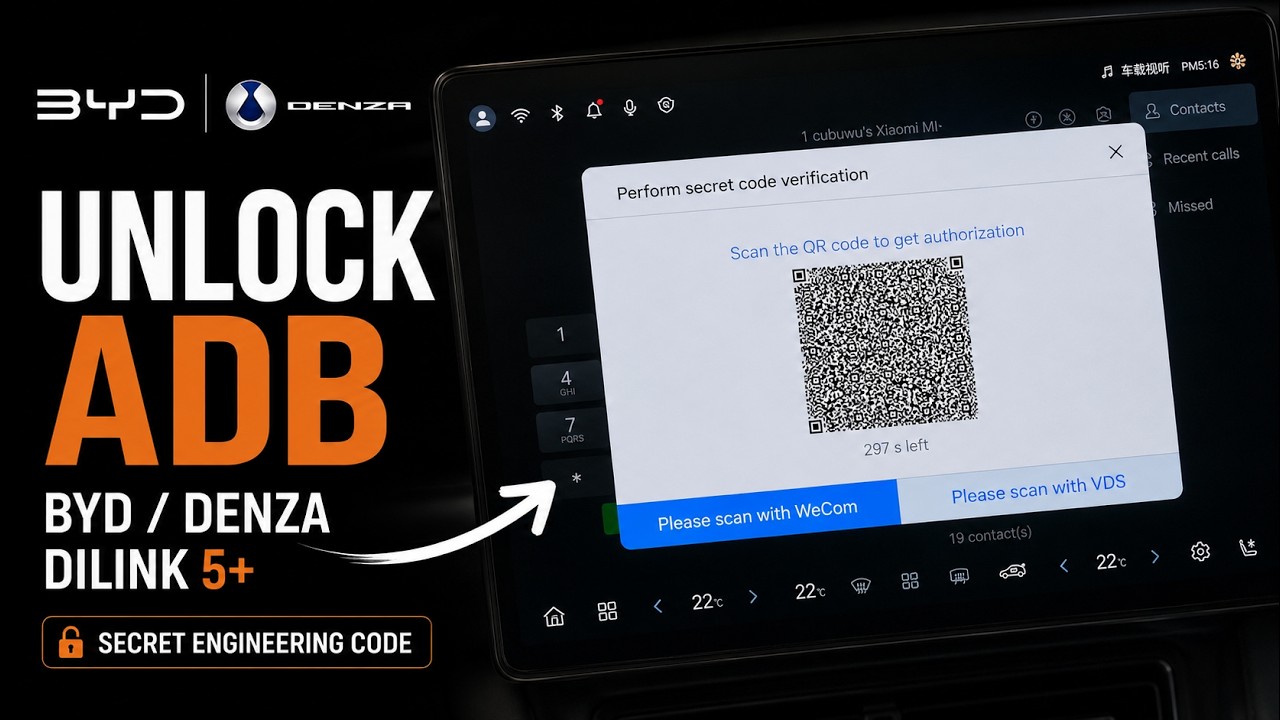
THE DEFINITIVE TEST
Let the screen answer.
A 5.0 UI or newer is the usual indicator, often described online as DiLink 5+, but the QR-menu result is definitive.
In the infotainment dialler, enter the code below. Do this only while safely parked.
*#91532547#*A QR page opens
The required route is present. Compare the page layout before choosing your next step.
Nothing happens
Your current UI does not expose this QR route, so the service is not currently compatible. A future OTA may change that.
Which QR page do you see?
The button layout reveals which preparation your vehicle needs.
WeCom and VDS
Two choices appear at the bottom of the page. The selected choice is blue, as shown in the image.
Next step: continue through the compatibility checker.WeCom only
This page is plain white and has no VDS choice or blue selection button.
A working China-routed VPN must already be installed and active on the vehicle infotainment system during the scheduled QR process.
BAOLAB does not supply the VPN app. Complete the checker for the correct next step before purchasing.AT YOUR APPOINTMENT
Generate it when both sides are ready.
The live remote session usually takes around 5 minutes once you and BAOLAB are online. Scheduling time is separate.
SERVICE SCOPE
Remote guidance, with you at the controls.
BAOLAB providesLive technical assistance through the vehicle's existing QR process.
You providePhysical access to the parked vehicle and each on-screen action.
The service does not includeRooting, firmware flashing, vehicle-control modification, a VPN app or third-party app installation.
Turn the screen result into a next step.
The interactive checker handles the QR result first and uses the bottom dock only as a visual fallback.